Hardly anyone has one wallet. There’s the Bitcoin wallet from years ago, the EVM one for DeFi, the one set up for a single token and barely opened since. Checking on all of them means opening three or four apps and remembering which is which.
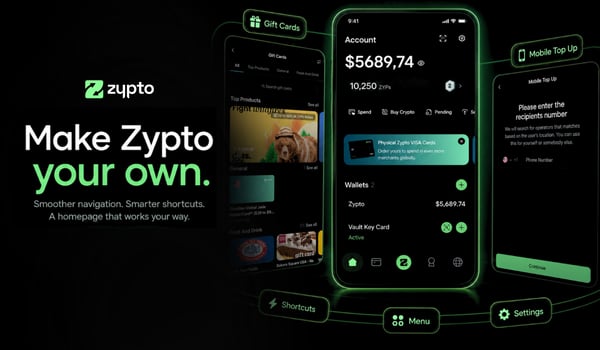
Zypto App takes them in. Bring a wallet across with its seed phrase or its private key and it lands next to everything else you hold, inside an app that can swap, pay bills, buy gift cards, top up a card and put your balances to work. The wallet is still yours the whole time. Zypto never holds it for you, and you can take it back out whenever you like.
Here’s how to do it.
Four ways to add a wallet
Open Zypto App, go to your Wallets, and tap the + icon. You get four choices:
- Create New Wallet, if you’d rather start fresh.
- Import with Seed Phrase, for a wallet you have the recovery words for.
- Import with Private Key, for a single key, on one chain or across all of them.
- Read-Only (Watch-Only), to follow a wallet’s balance and activity from its public address.
The three import routes are what you want if you already hold crypto somewhere else.
Import with a seed phrase
This is the route to use when you have the recovery words / seed phrase.
- Tap +, then Import with Seed Phrase.
- Type your phrase, one space between each word. A long tap gives you paste if you’d rather not type it.
- Give the wallet a name so you can tell it apart from the others.
Phrases can be 12, 18 or 24 words. Single spaces, no punctuation, no extra capitals to worry about.
Import with a private key
A private key covers one wallet rather than a whole set of derived addresses, so this route asks you one extra question up front.
- Tap +, then Import with Private Key.
- Choose Master Key (for All Chains), or pick the specific blockchain or network your key belongs to from the list.
- Name the wallet.
- Paste the key.
That’s the whole thing. About thirty seconds and the wallet is in.
More wallets you can bring across
The v1.29 update widened the range of wallets Zypto App will take. You can now bring in:
- XRPL secrets, including the older short-form keys that plenty of long-held XRP wallets still use.
- Sui wallets.
- Dash wallets.
- Every Bitcoin address format, legacy and modern.
- HIVE accounts, on wallets brought in with a recovery phrase. You can create a HIVE account in-app on those wallets too, and HIVE appears on your Receive screen.
Zypto App checks each import against the wallets you already hold, so every wallet appears once, and it confirms the key type the moment you paste it.
Add a wallet as read-only
Read-only is the option sometimes people overlook, and it answers a question that comes up constantly: how do I keep an eye on a wallet I’m not touching?
This one needs nothing but a public address. No seed phrase, no private key.
- Tap +, then Read-Only (Watch-Only).
- Choose the blockchain or network.
- Name your wallet.
- Paste the public wallet address.
Zypto App then follows that wallet’s balances and activity for you. Watch a cold wallet, a wallet you’ve moved long-term holdings into, or an address you simply want to keep tabs on. Nothing you add this way can be moved, sent or paid from inside Zypto App.
It has a second use as well. A read-only wallet can be set as your secondary wallet in the Rewards Hub, so a balance you’re deliberately keeping untouched still counts toward your Zyptopia rewards.
What the wallet can do once it’s in
Importing takes seconds. Here’s what opens up once it’s in, all in one place, without moving anything anywhere:
- Send crypto to anyone, anywhere, at any hour of the day.
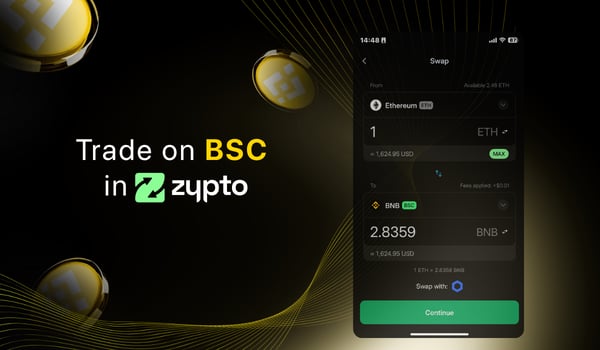
- Swap across chains from a multichain wallet without hopping between apps.
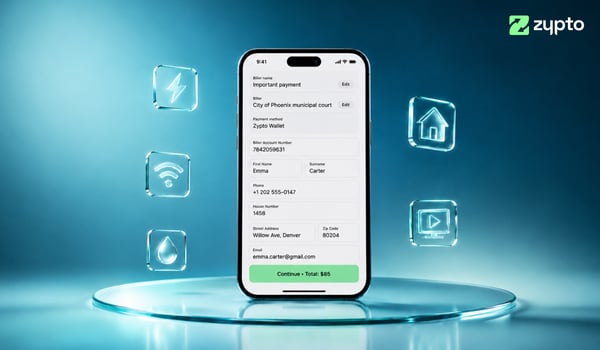
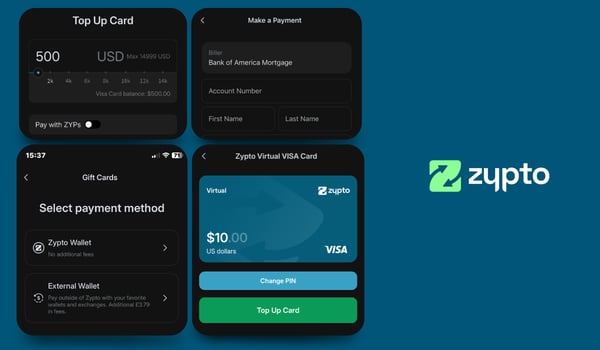
- Pay bills and top up mobiles.
- Buy gift cards and prepaid virtual cards from a single catalog.
- Load a Zypto card.
- Earn ZYPs as you go.
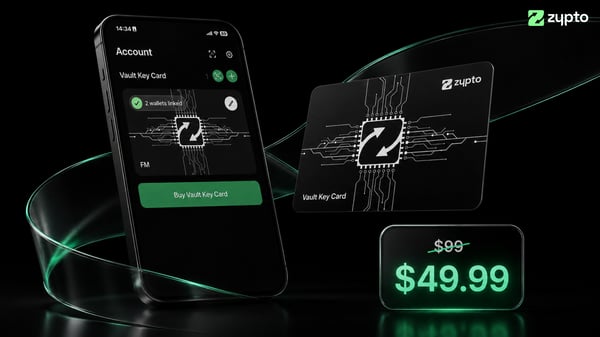
- Pair a Vault Key Card and move the keys into cold storage.
Your crypto stops being a balance you check and becomes money you can use.
Looking after your keys
Your seed phrase and your private keys are the wallet. Anyone holding them holds the money, which is why nobody legitimate will ever ask you for either.
Type them into Zypto App and nowhere else. Not into a support chat, not into a website that offers to “validate” or “sync” your wallet, not to anyone who messages you first. Keep the phrase written down offline, away from your photo library and your notes app. If you’d rather follow a wallet’s balance without importing it, use the read-only option above.
Taking a wallet back out
Every wallet you can bring in, you can take out again. Export is there whenever you want it, so you’re never stuck inside one app to reach your own money, and that’s the principle the original import and export release was built on. To remove a wallet from Zypto App, open it, tap Settings at the top right, then Remove Wallet.
Your keys, your wallets, your money.
Ready to bring your wallets together? Download Zypto App, tap the + icon, and take your pick.
Free Your Money. With Zypto.
Prices, fees, features and availability mentioned in this article were correct at the time of publishing and may have changed since.
Related topics